For coaches
What you can do in the Coaching Corner
Groups, homework for a whole class, a leaderboard for every group, your own puzzle sets and openings, and every wrong move your students play. A tour of the Coaching Corner.
3 min read
The Coaching Corner is open to every coach on ChessPeak. It has two doors: My library, where you prepare puzzles and openings once and use them all season, and My Students, where you follow your groups and every student. Here is what each part does.
Put your students into groups
Open My Students. The Students tab lists everyone with their group, when they were last active, puzzles solved and points. Choose each student's group in the Group column, one group per student, and create groups with New group, for example one per class.
To add students, use + Invite student with their ChessPeak or Lichess username, or share your invite link from Settings: whoever opens it becomes your student straight away.
Prepare puzzles once, in My library
- New set: themes, a rating range and 5 to 100 puzzles from the puzzle database. Everyone who gets the set solves the same puzzles, and a new set never repeats a puzzle from your earlier ones.
- Custom set: your own PGN file or a Lichess study. Each game becomes one puzzle, played along its main line.
- Open a set to see its puzzles, and change the list whenever you like.
Give homework to a group or to one student
- 1Open a group, or a student's page, and tap Give homework.
- 2Pick a set. Not given yet lists the sets they have not had; Already given shows the ones they have.
- 3Choose a deadline, from 2 days to 2 weeks or any date up to 90 days ahead, or No deadline. Then Assign homework.
Your students find it in their notifications and under From your coach, and one tap takes them back to where they stopped.
See who started and who finished
A group page shows the current homework as Given, Started and Finished, with the names of those who have not started and those still working. That is the list to message before the next lesson. Finished homework moves to History.
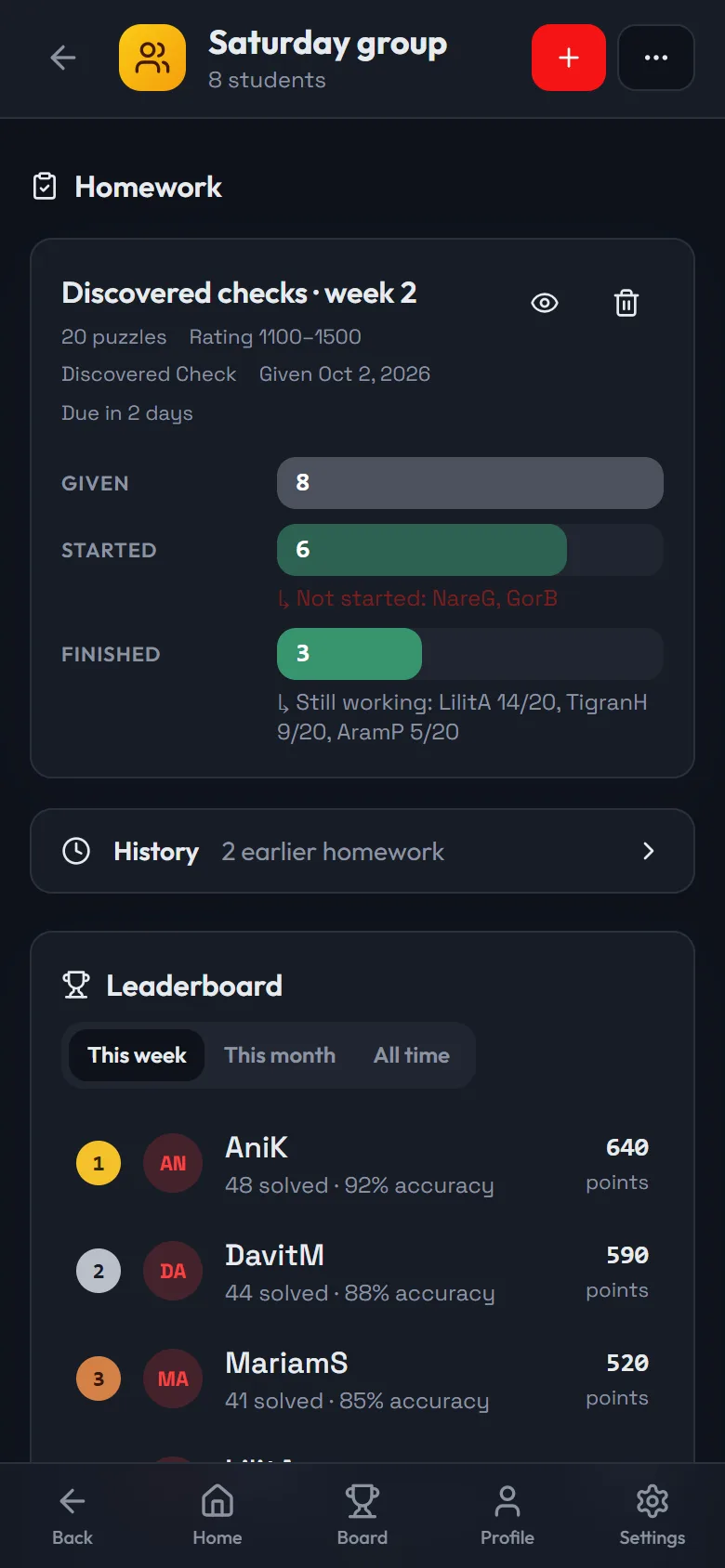
- 1Give homework to the whole group
- 2Who started and who finished, by name
- 3The group's leaderboard for the week
A leaderboard for every group
Each group has its own Leaderboard for this week, this month and all time, with points, puzzles solved and first-try accuracy. Your students see it too, as My group on their From your coach page.
Yellow cards, not penalties
Homework finished after its deadline, or not finished by it, gets a yellow card. Nothing is locked and no points are lost. Excuse a card when there was a good reason, or give one student a few more days from their page.
Every wrong move, for every student
A student's page shows their points, puzzles solved and first-try rate, this week's activity, the mountains they climb and every puzzle they solved. Open a puzzle to see the moves they played instead of the right one.
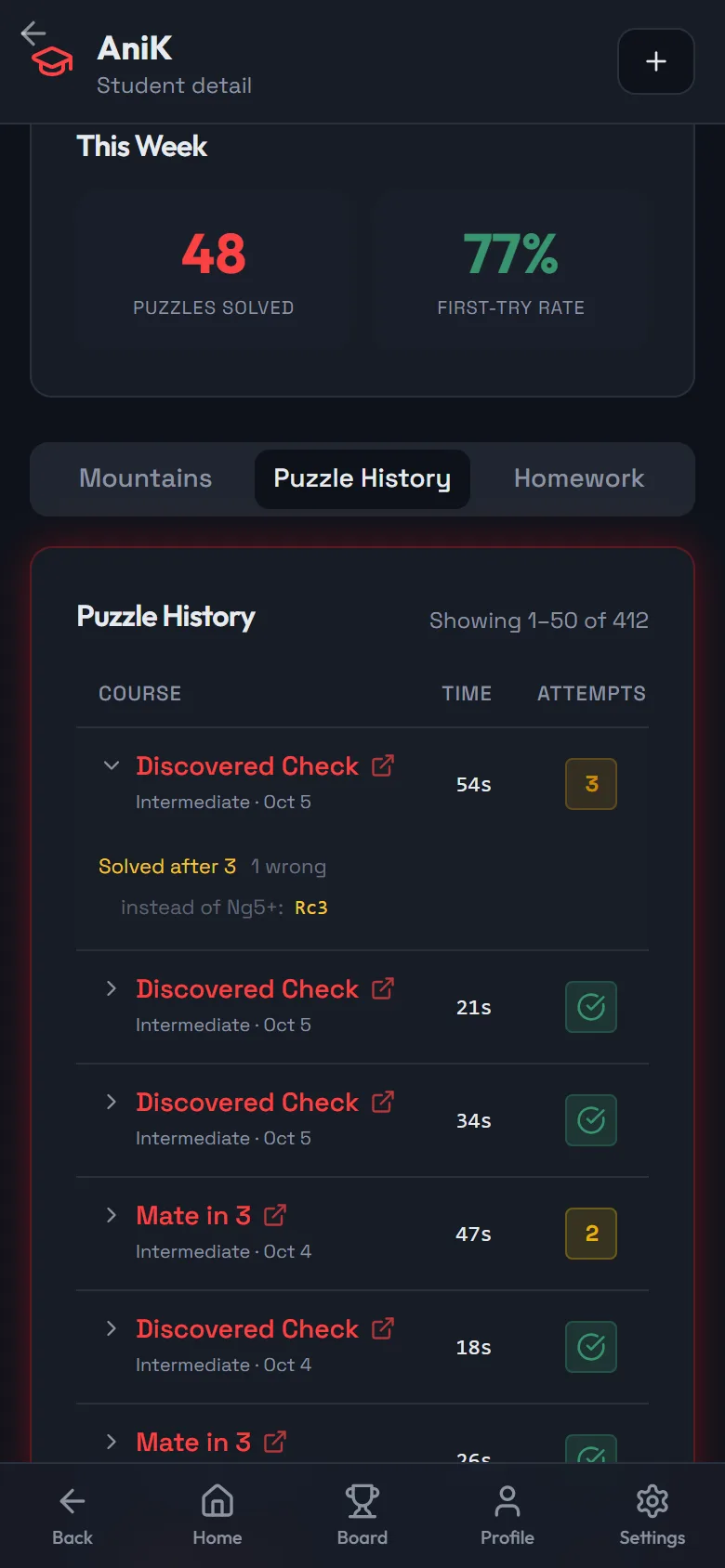
- 1Puzzles solved and first-try rate this week
- 2Mountains, every puzzle and homework
- 3The move they played instead of the right one
Openings
In My library, the Openings tab holds your openings. Start one from scratch, from a position, from a PGN file or from a Lichess link, then add chapters, variations and a comment on any move.
Assign an opening to students in Train mode, where they find the moves line by line and repeat each line after 1, 3 and 10 days until it is learned, or in Explore mode, where they read it through with your notes. The Assign window shows how many lines each student has learned.
Start with one group and a set of 20 puzzles due in a week. The day before your lesson, open the group page and see who needs a message.